How to Install IPTV on Firestick: Step-by-Step Guide
Firestick is one of the most popular ways to watch IPTV in Canada, but the best results come from choosing the right player app and configuring it carefully.
If you want to watch IPTV on Firestick, you are not alone. Fire TV devices remain one of the most practical options for streaming because they are affordable, portable, and familiar to many households. They also support several popular IPTV player apps, which makes them a common choice for both first-time and experienced users.
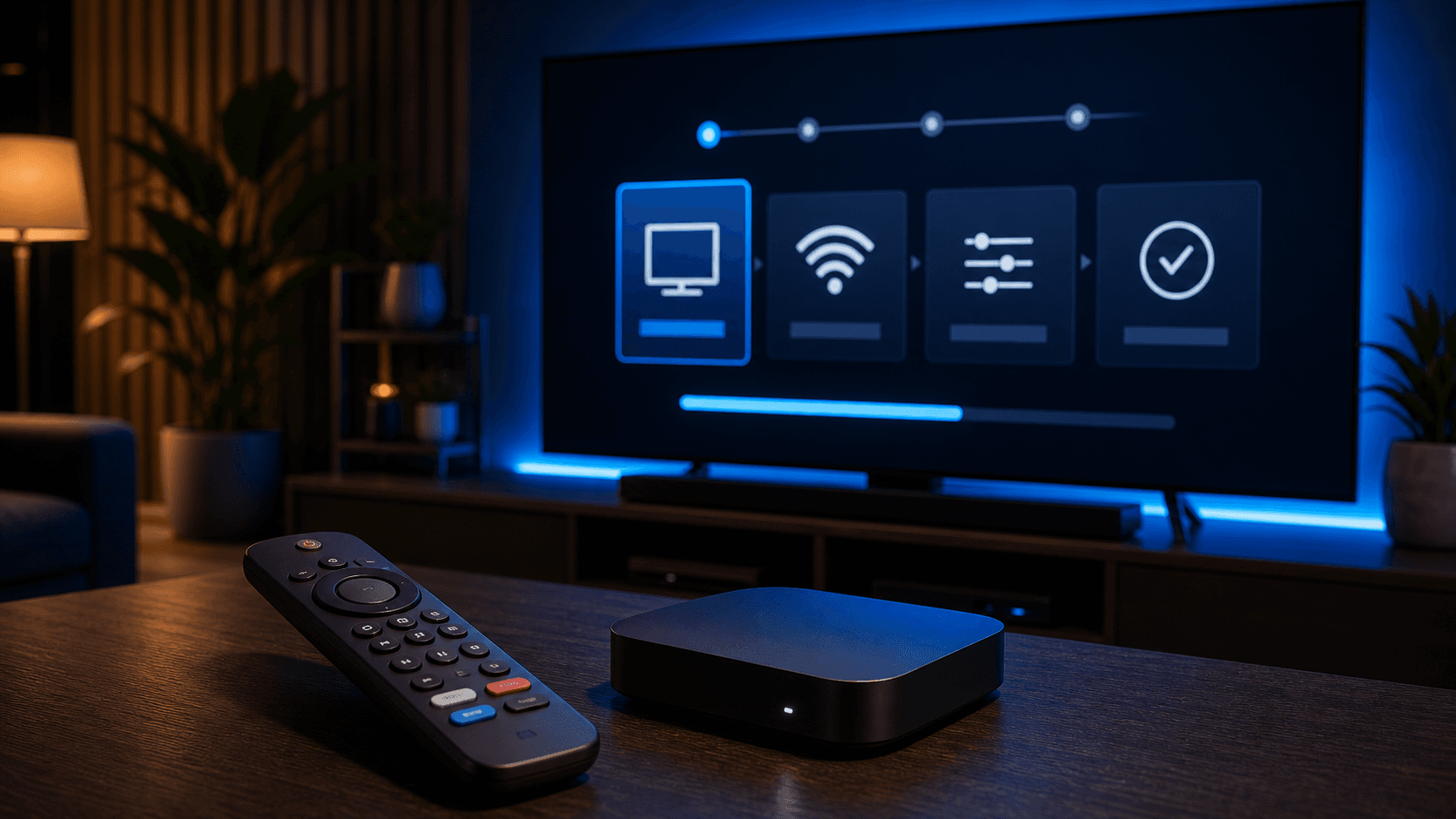
That said, installing IPTV on Firestick is smoother when you approach it as a simple workflow instead of a trial-and-error project. The best results come from preparing the device, choosing the right player app, entering your login format carefully, and checking a few playback settings before you judge the service quality.
This guide walks through the full setup process in a clear step-by-step order. It also explains what to do if the app does not load, the guide data looks incomplete, or playback seems slower than expected on the first day.
Prepare your Firestick before installing any app
The first step is to make sure the Firestick itself is ready. A cluttered device with low storage, outdated software, or unstable Wi-Fi will create problems even when the IPTV service is fine. Before installing anything, restart the device, check for system updates, and confirm that your internet connection is stable in the room where you usually watch.
It also helps to think about how you want to navigate the app. Some users are happy with the standard Fire TV remote, while others prefer adding a small Bluetooth keyboard for faster credential entry. That can save time during the first setup, especially if you need to paste a server URL, username, or password carefully.
If your Firestick is mainly used for streaming, remove old apps you no longer need. Extra storage space and fewer background tasks can make the initial app installation feel faster and more reliable.
Choose a compatible IPTV player app for Firestick
Firestick does not work best with every player app in the same way, so choosing the app matters. Some users prefer a simple interface that gets them into live TV quickly. Others want more advanced category control, guide settings, or favorites management. The best app for you depends on whether you value ease, flexibility, or visual polish.
A good provider should recommend the most suitable app for your device and your comfort level. If you are a beginner, ask for the easiest supported path first. If you already understand IPTV apps, ask whether a more advanced option would improve navigation or stream organization on Fire TV.
No matter which app you choose, install it only through the recommended method that matches your device. That keeps the setup cleaner and makes troubleshooting easier if you need help later.
Simple app flow for first-time users
Beginners usually do better with a player app that has a straightforward home screen, obvious login fields, and easy access to live TV and video-on-demand sections.
When the interface is simpler, it becomes much easier to tell whether a problem is related to setup or to the network.
Advanced app flow for power users
Experienced users may prefer an app with better group management, layout controls, and a more detailed EPG interface.
On Firestick, those extra controls can be useful, but they are only worth it if you are comfortable adjusting settings after the first login.
Enter your IPTV login details carefully
Most setup problems on Firestick happen at this stage. The app may ask for a playlist URL, Xtream-style credentials, portal information, or another supported format. The only correct approach is the one provided with your activation details, so avoid guessing or mixing methods.
Take your time when entering the credentials. Even a small extra space, a missing letter, or a swapped symbol can cause the app to reject the account. If you received the details through WhatsApp or email, copy them exactly where possible and double-check every field before saving.
Once the login is accepted, give the app enough time to import channels, movies, series, and guide data. New users often assume the service is incomplete when in reality the first sync is still running in the background.
- Use the exact login format you were given
- Check for spaces before or after pasted text
- Wait for the initial content import to finish
- Refresh the EPG after the first sync if needed
Improve playback quality after the first login
After the service loads, spend a few minutes tuning the viewing experience. Start by opening a live channel, an on-demand title, and the guide view. This helps you confirm that the app is not only logged in, but also fully usable for normal browsing.
If the app offers playback buffer settings, decoder choices, or appearance preferences, test them one at a time. There is no perfect universal setting for every household. Some Firestick users prefer smoother live playback with one decoder path, while others get better results with a different option depending on the app and internet conditions.
It also helps to create favorites early. A smaller favorites view reduces scrolling and makes the app feel cleaner, especially on Firestick where remote-based navigation is a big part of the experience.
How to fix common Firestick IPTV issues
If the app opens but streams buffer, start with the simplest explanation: local network quality. Restart the router, restart the Firestick, and test again before changing lots of app settings. Buffering that disappears after a network refresh usually points to a temporary local issue rather than a service failure.
If the EPG or categories look incomplete, give the app more time and then try a manual refresh. Guide data often arrives after the main channel list. The same applies to on-demand categories, which can appear in stages during the first load.
If the app crashes or refuses to open, check for device updates, confirm free storage, and make sure you installed the correct player version for Fire TV. When the problem continues, contact support with the app name and exactly where the process stops. Specific details make troubleshooting much faster.
Best habits for a smoother Firestick IPTV experience
Once your setup is working, keep it simple. Update the app only when necessary, avoid installing too many extra streaming tools at once, and keep enough storage available for updates and temporary files. Firestick performs best when it is not overloaded.
Use the same app consistently for a while before deciding that you need a different one. Switching apps too early makes it harder to know whether a problem comes from the service, the device, or the settings. If you need a better fit later, you can change with much more confidence once you know your baseline performance.
Most importantly, treat setup support as part of the subscription value. A good provider can tell you which app to use, how to log in, and what to test first. That guidance turns Firestick into one of the easiest IPTV devices to manage.
Firestick setup checklist for faster results
A good Firestick setup usually feels simple because the steps are done in the right order. First confirm the device is updated and has enough free storage. Then install only the app you actually plan to test. After that, enter the credentials carefully, allow the initial sync to finish, and judge the experience only after you have opened live TV, on-demand sections, and the guide.
This sequence matters because Firestick users often create their own confusion by multitasking. They install two or three apps, switch between networks, and try to compare playback before the first import is even finished. That turns a manageable setup into a messy one. A single app, a single device, and a controlled first test almost always produce clearer results.
Firestick is also a device where viewing habits matter. If the main use is casual evening watching, favorites and fast navigation will matter more than advanced configuration screens. If the device will travel between homes, portability and simple login recovery may matter more. Thinking about those habits early helps you decide whether the first app you choose is still the right long-term app.
When users say Firestick is the easiest IPTV device, they are usually describing a setup that had three ingredients: a compatible player app, careful login entry, and support that knew exactly what to recommend. That is the real formula behind a smooth Fire TV experience.
- Update Fire OS before starting
- Keep the first app test controlled and simple
- Wait for channels, VOD, and EPG to finish loading
- Judge the experience on your main viewing habits
- Use support early if a login step feels unclear